

Magic
Magic is a board of lanes in time. Each block on a lane is one generation: a storyboard frame, a shot, a still, a line, a music cue or a sound. You add blocks where they belong, run them, pick the takes you like, and play the board. When it plays right, Export makes an MP4, and Send to Timeline makes a new sequence to keep cutting.
The page
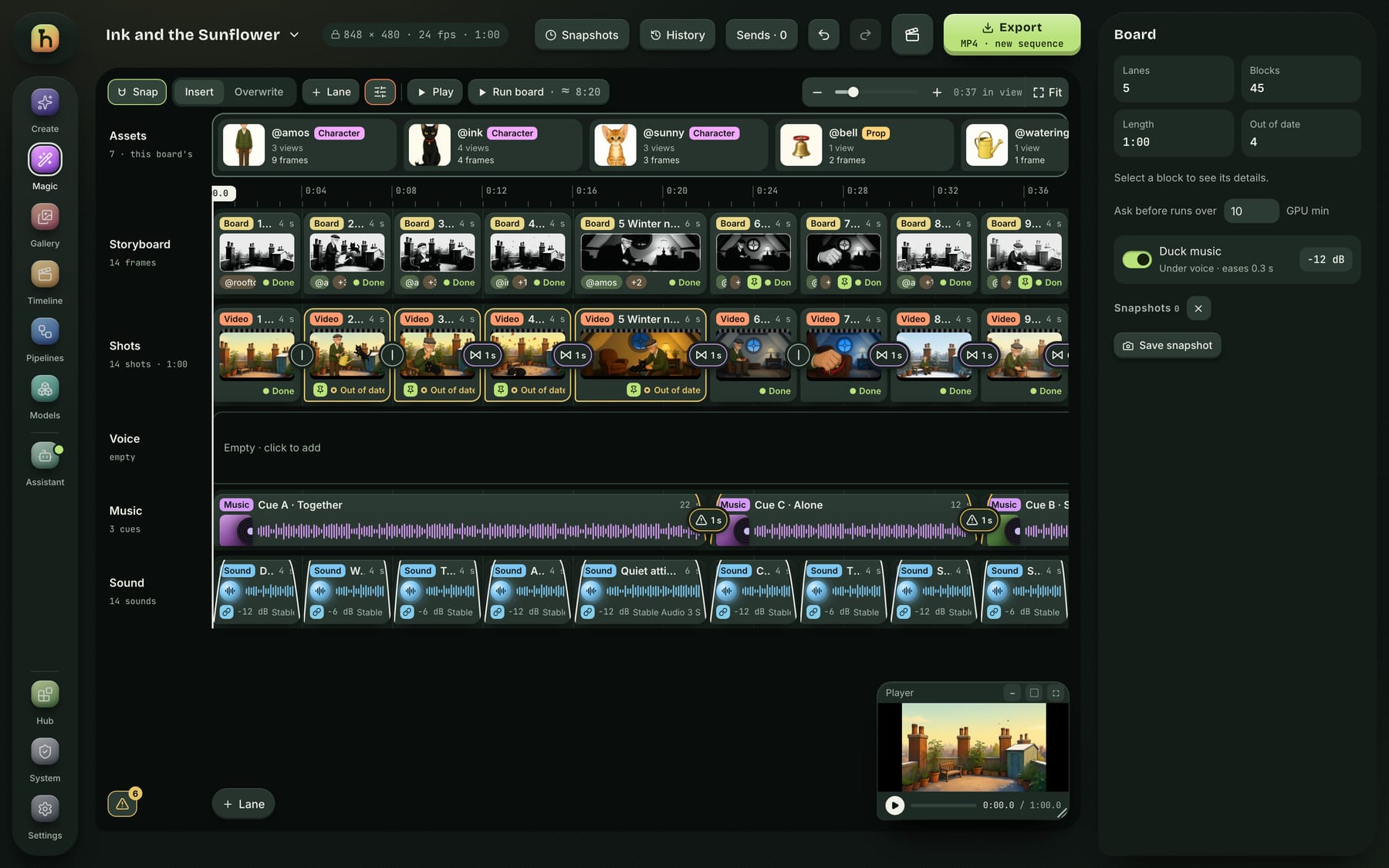
Section titled “The page”Magic is in the rail after Create. The board fills the page’s height; its lanes scroll inside it.
- Top bar: the board’s name (open it to switch boards, search them or make a new one), its size and frame rate with a lock, Snapshots, History, Sends, the Undo and Redo icons, Export, and the Send to Timeline icon beside it.
- Tools: Snap, Insert or Overwrite, + Lane, the side panel toggle, Play, Run board with its estimate (such as · ≈ 1:35), Stop runs (N) while anything is queued or running, and the zoom group (zoom out, a slider, zoom in, the span in view, Fit).
- Assets row: the board’s characters, props and places, above the ruler.
- Lanes: Storyboard, Shots, Voice, Music, Sound, and lanes you add and name yourself.
- Side panel: the selected block’s inputs, model, length, joins, ties and effects, with Open and Run.
- Player: floats small at the bottom right of the window. Drag it, resize it or shrink it to a bar. Press ⛶ or F for full screen; Esc comes back.
- Warnings: an icon with a count at the bottom left when blocks need you. See Blocks that need you.
To zoom, use ⌘ + the mouse wheel or pinch on a trackpad; it zooms at the pointer. Shift + the wheel scrolls across. Fit (⇧Z) shows the whole board.
Play (or Space) plays the board from the playhead and turns into Pause. It plays the shots; where no shot covers the time yet, it plays the storyboard frames as a rough cut.
Each board is yours alone. In the boards list, type to search (press / to start, Esc to clear); older boards are found too.
At phone width the player sits on top, the lanes scroll sideways, and a tap opens a block.
Make a board
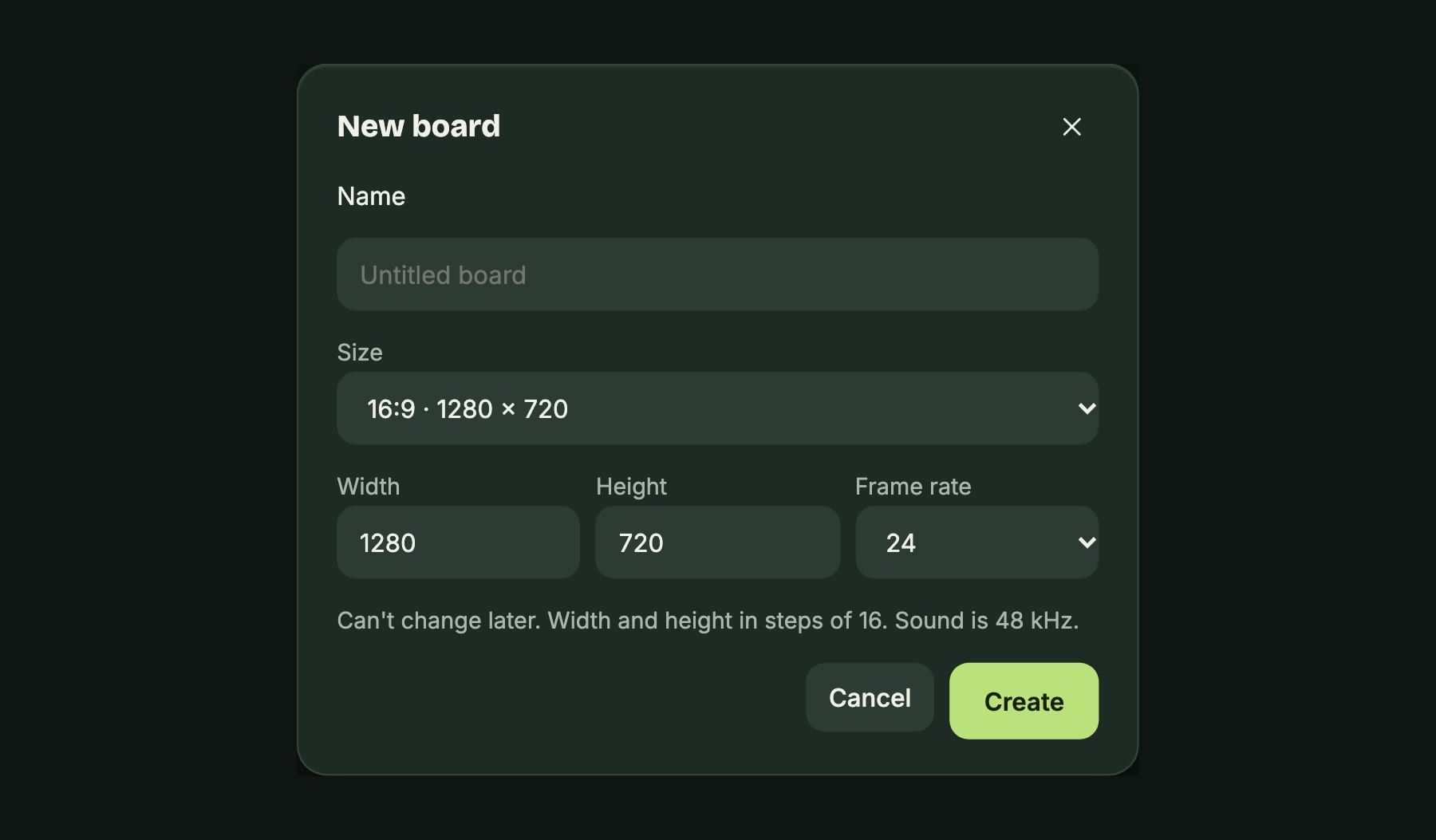
Section titled “Make a board”- Open the board’s name and choose New board.
- Give it a Name, or leave it empty: an untitled board names itself from its first prompt, as a Timeline sequence does. A short “named by …” note shows once beside the name. A name you type is kept.
- Pick a Size: 16:9 1280 × 720, 16:9 1920 × 1080, 9:16 720 × 1280, 1:1 1024 × 1024, or Custom (width and height in steps of 16).
- Pick the Frame rate: 24, 25, 30, 50 or 60.
- Press Create.
The size and frame rate can’t change later. The top bar shows them with a lock. Sound is 48 kHz.
Add a block
Section titled “Add a block”- Click a lane at a time, or right-click the lane and pick Add Video, Add Voice or another kind.
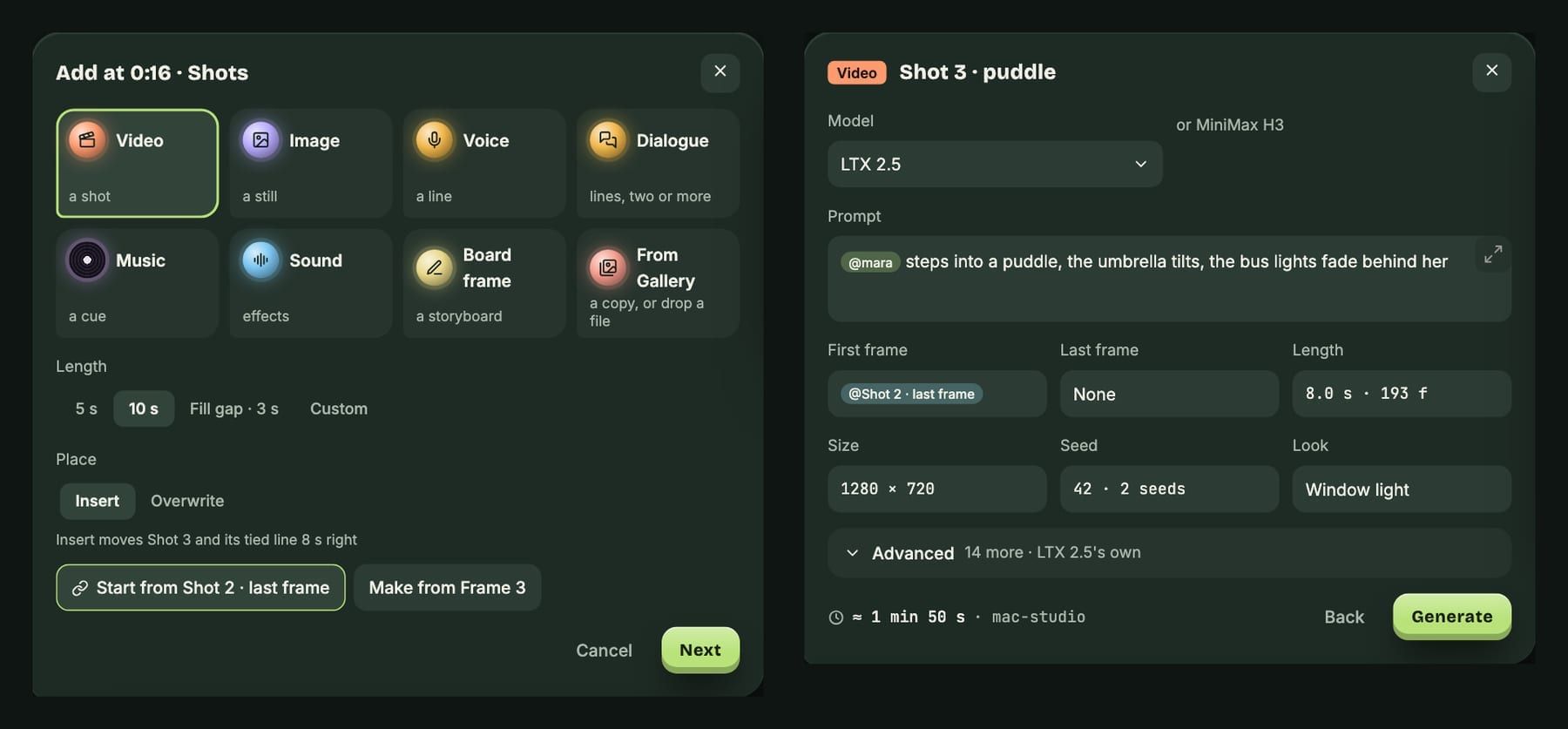
- Pick the kind: Video (a shot), Image (a still), Voice (a line), Dialogue (two or more lines), Music (a cue), Sound (effects) or Board frame (a storyboard frame).
- Pick the length: 5 s (the default), 10 s or Custom. In a gap, Fill gap fits it to the gap.
- Pick Insert (the blocks after it move along) or Overwrite (it covers what is there).
- Pick where it starts from, if it can: for example Start from Shot 2 · last frame or Make from Frame 3.
- Press Next, fill the request, then press Generate, or close it to keep the block as a draft.
To place a take you already have, press From Gallery in Add, or right-click a lane and choose From Gallery. The take goes in at its own length.
Any kind can go on any lane. A lane’s role only sets the kind Add picks first.
The request
Section titled “The request”Every kind asks for the same few fields, whichever model makes it:
| Kind | Fields |
|---|---|
| Video | Model, Variant, Prompt, First frame, Last frame, Length, Size, Seed |
| Image | Model, Variant, Prompt, references, Size, Length on board |
| Voice | Model, Line, Voice, Length, Level |
| Dialogue | Model, and lines, each with a speaker and the words; Level |
| Music | Model, Style, Lyrics, Length, Key, BPM, Level |
| Sound | Model, From (a prompt or a shot’s video), Prompt, Length, Seed, Loop, Level |
Variant sits beside Model: for example Base or Turbo. An fp8 variant shows only where a host has the GPU for it, and a variant no host can run is greyed, with why. The estimate follows the variant you pick.
Advanced holds the model’s own settings. A field the model can’t use is greyed, with the reason: for example MiniMax Music 3 has no Key or BPM. Run on in an open block picks the machine, as on Create; Auto is the default.
The first model picked for a kind is Qwen Image on Turbo for images and frames, LTX-2.5 for video, Qwen3-TTS for voice and MiniMax Music 3 for music. A sound made from a prompt starts on Stable Audio 3; a sound made from a shot’s video runs on MMAudio.
Shots are made at the board’s size. Frames, stills and views are made at about 1K (long side 1024), in the board’s shape, unless a block sets its own size.
Generate shows the estimated GPU time, such as ≈ 1:50, before you press it. Seed can make several takes at once, such as 42 · 2 seeds. The Prompt, Line and Lyrics boxes keep one height and scroll; Expand opens them big.
Blocks, takes and status
Section titled “Blocks, takes and status”Each block shows a preview and its status:
| Status | Means |
|---|---|
| Draft | No take yet. |
| Running | A run is going, with its progress. |
| Done | It has a take that matches its request. |
| Out of date | Its request changed after its take was made, or something it uses did: an asset it picks (its first view or its voice), the frame it was made from, or the shot it takes a frame from. Adding more views to an asset does not make blocks out of date. |
| Failed | Its last run failed, with the reason and Retry. |
Run an out-of-date block again to bring it up to date. Its older takes stay in its history.
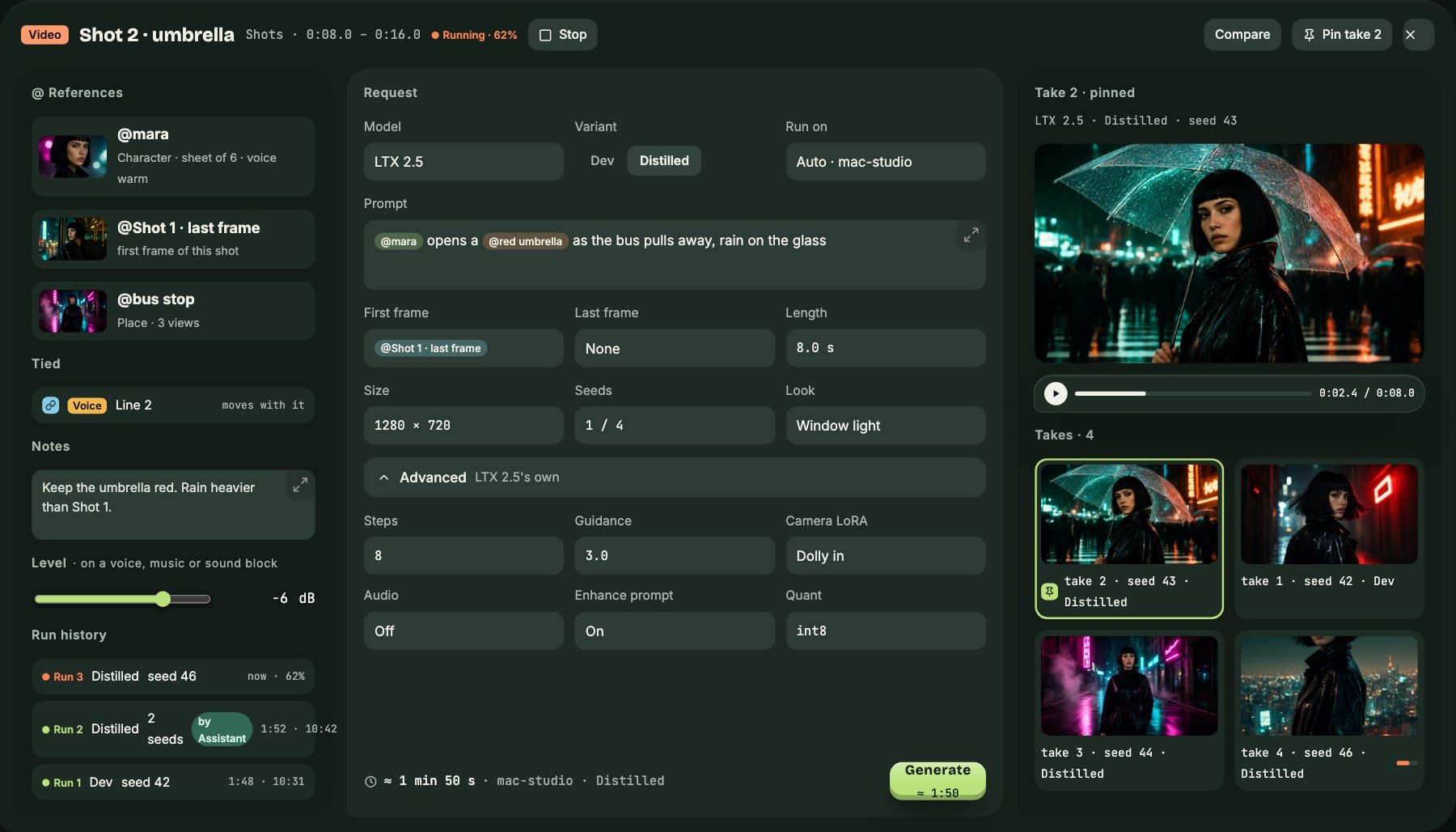
Double-click a block, or choose Open, to see all of it:
- Its @ references, what is tied to it, and notes (the Assistant reads them too).
- The run history: each run with its variant and seed (such as Run 3 · Distilled · seed 46), how long it took, and whether the Assistant ran it.
- The request, with Advanced.
- Its takes, and under the picture the model and variant that made it. Click a take to show it, Pin the one the board should use, or Compare two side by side. The full-screen button opens a take big.
Stop a run
Section titled “Stop a run”A running block’s menu has Stop where Run was, and its dialog has Stop by the status. Stop runs (N) in the tools stops everything on the board, after you confirm. A queued run drops at once; a running one stops at its next safe point. Takes already made stay.
Voice, music and sound blocks have a Level: a slider in decibels, from −60 to +12. In the block’s menu, Louder adds 3 dB, Quieter takes 3 dB off and Reset level goes back to 0. A block with a level shows a badge such as −6 dB. Play, Export and Send to Timeline use it. Fades are next to it: see Fades, crossfades and ducking.
Blocks that need you
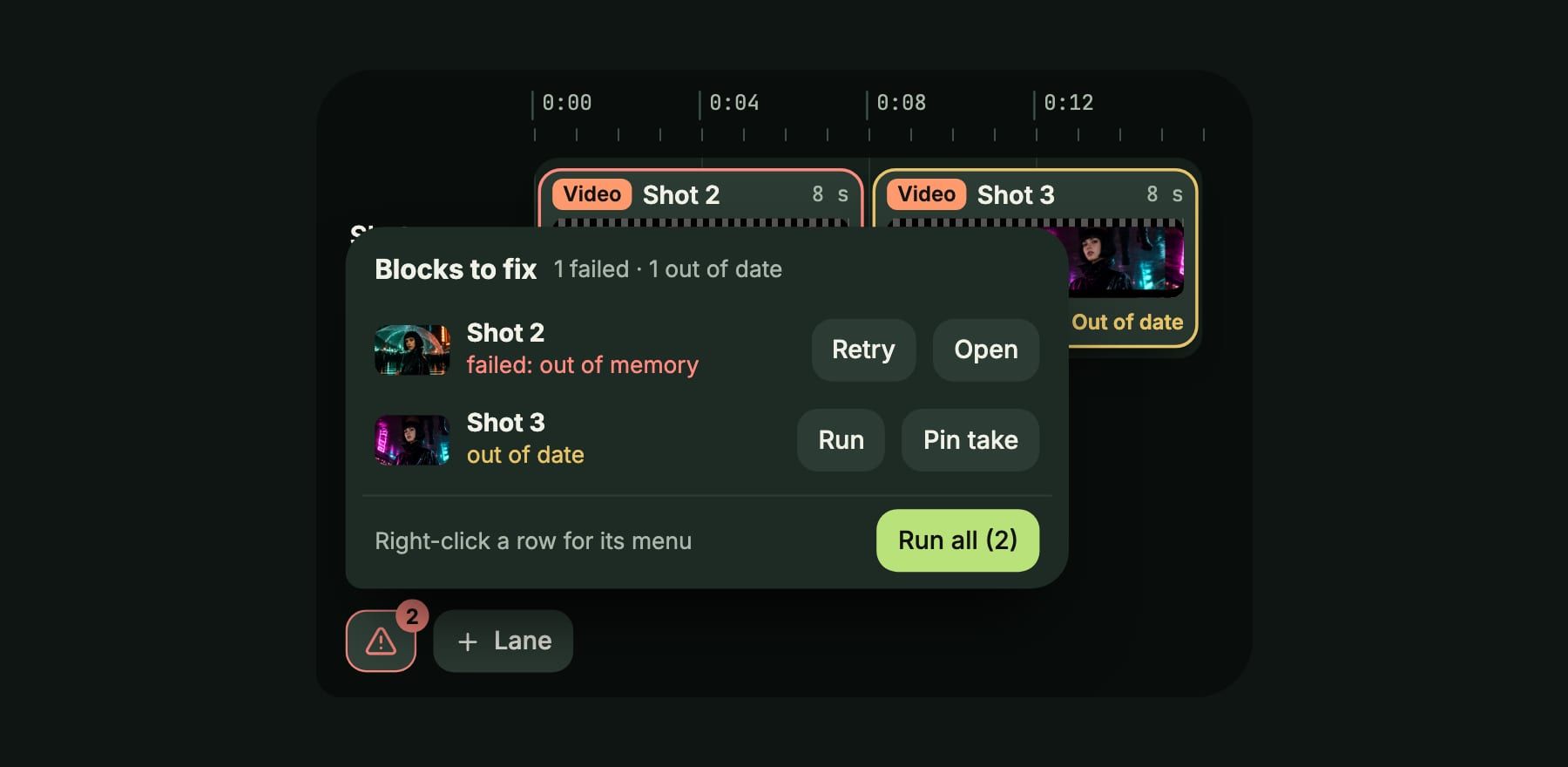
Section titled “Blocks that need you”When a block failed, is out of date or no longer fits, a warning icon with a count shows at the board’s bottom left: amber, or red once any block failed. Nothing on the board moves.
Click it to open the list. Each row has the block’s picture, why it needs you and its fixes:
- A failed or out-of-date block: Retry, Open or Run, or a take to pin (Pin newest, Pin take, Unpin).
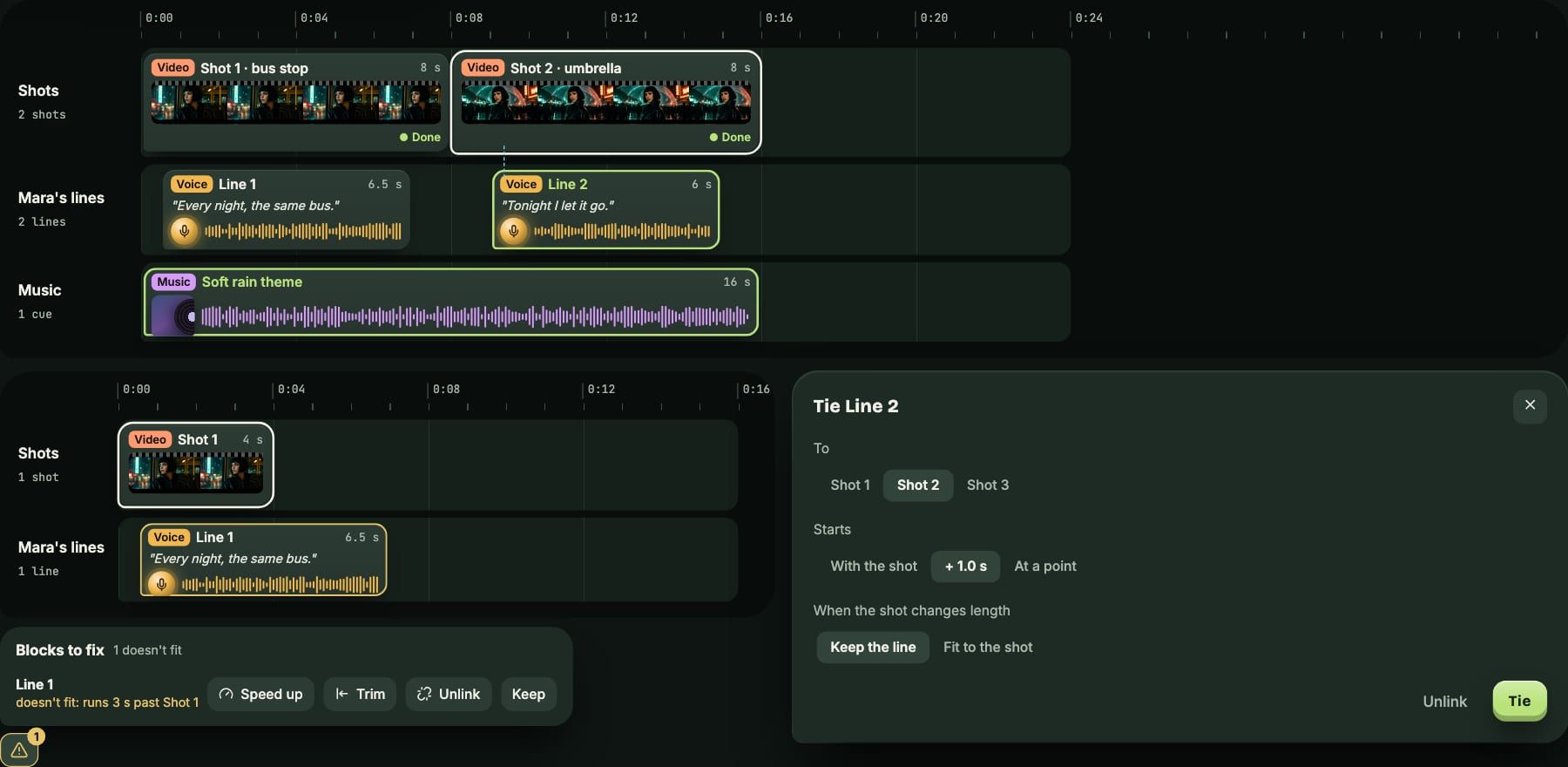
- A line that no longer fits its shot: Speed up, Trim, Unlink or Keep.
Click a block’s name to select it on the board; right-click it for the block’s menu. Run all (n) runs every block in the list that can run.
Assets and @ picks
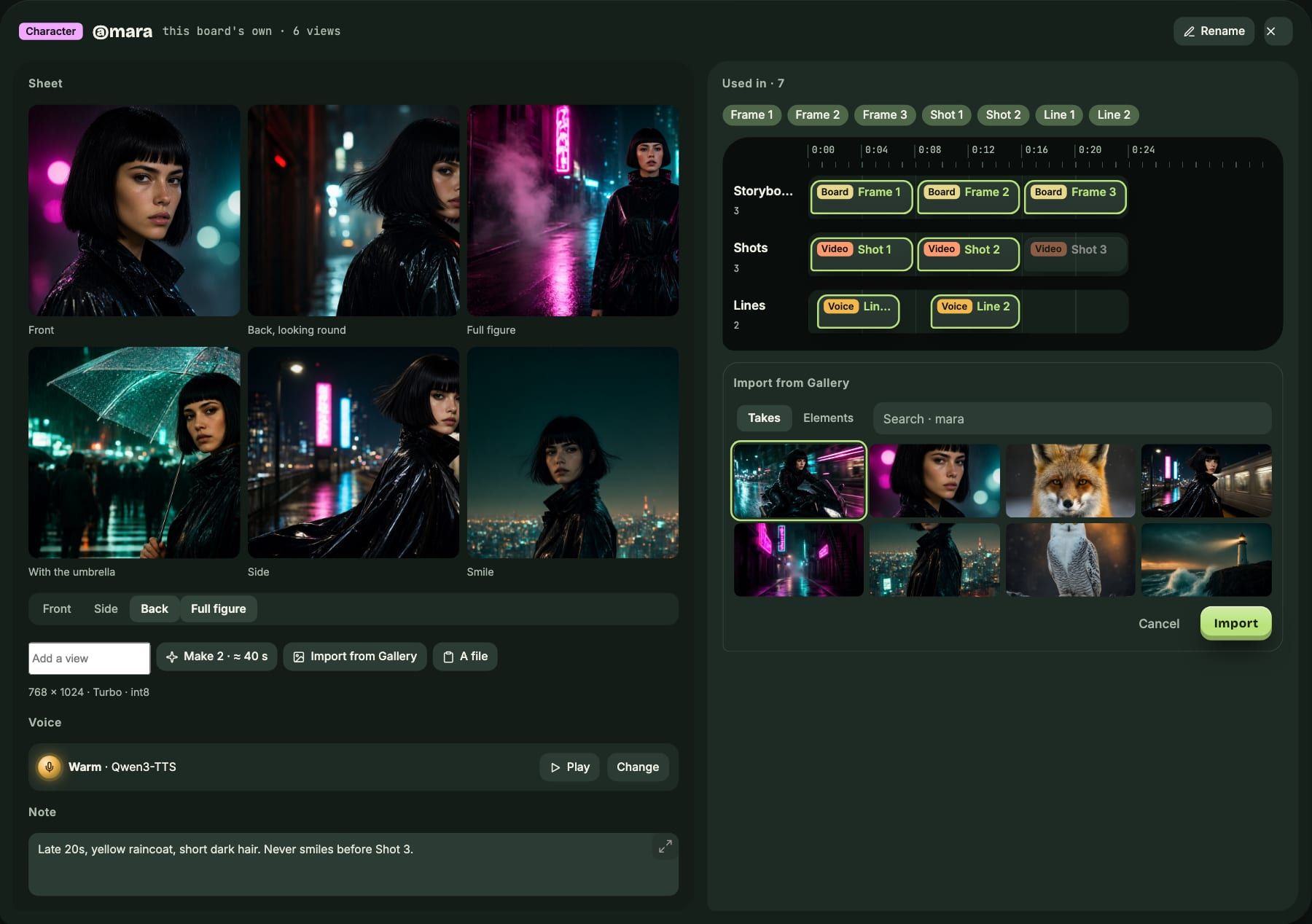
Section titled “Assets and @ picks”Assets are the board’s own characters, props and places. They live in the Assets row and belong to this board.
- + Asset makes one. Import copies a take or an Element from your Gallery into the board. Later changes in the Gallery don’t reach the board.
- Open an asset to see its sheet of views, its voice, a note, and where it is used. Click a view to open it full screen; the arrow keys step through the sheet and Esc closes it.
- A character’s voice is the voice its lines and dialogue speak in. The Assistant can design one from the character’s note.
Type @ in a prompt to pick an asset or another block’s picture, such as @mara or @Shot 1 · last frame. An
asset’s handle has no spaces, such as @red-umbrella.
Only the chain from asset to frame to first frame keeps a character looking the same from shot to shot.
Make views
Section titled “Make views”- Open the asset.
- Pick the views to make. The missing ones are on: Front, Side, Back and Full figure for a character, for example. Add a view names your own, such as “Smiling” (up to 6 at a time).
- Check the line under Make, such as 768 × 1024 · Turbo · int8. Click it to change the width, height, variant and precision for this batch; the board keeps your choice in this browser.
- Press Make n.
Views run on Qwen Image on Turbo unless you pick another image model. A character’s views are 3:4, a prop’s 1:1 and a place’s the board’s shape, at about 1K.
Storyboard frames
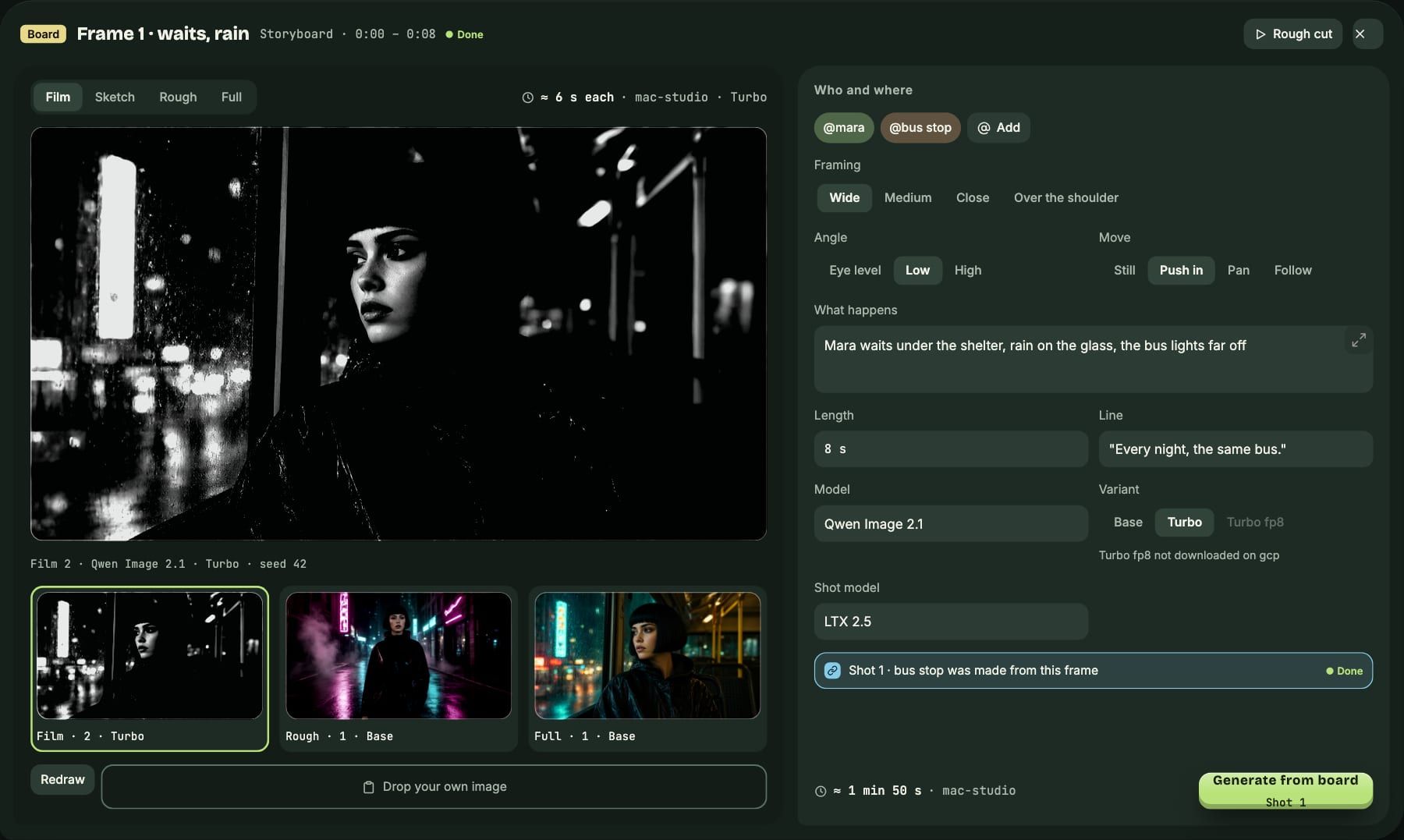
Section titled “Storyboard frames”A frame is a quick picture to plan a shot. Open it to set:
- The style: Film (the default: the film’s own look), or Sketch, Rough or Full.
- Who and where: the assets in it.
- Framing (Wide, Medium, Close, Over the shoulder), Angle (Eye level, Low, High) and Move (Still, Push in, Pan, Follow).
- What happens, its Length and its Line.
- The Model and Variant that draw it, and the Shot model that will make its shot.
Each row of takes says its style, count and variant, such as Film · 2 · Turbo. Redraw makes a new take; you can also drop your own image. Generate from board makes the shot under the frame on the Shots lane and runs it. When you change the frame later, its shot shows Out of date.
Rough cut plays the frames in order with their lines.
Storyboard frames and assets stay on the board; they never go to the Timeline.
Voice, music and sound
Section titled “Voice, music and sound”Ties. A line or a music cue added under a shot is tied to it. Select the shot and what is tied to it lights up. Move the shot and the tied blocks move with it. Right-click to Tie to another shot or Unlink. A tied line that no longer fits its shot shows in the warnings.
Dialogue. A Dialogue block has two or more lines, each with a speaker and the words. A speaker is a board asset with a voice. Each line runs on its speaker’s voice, and the lines play one after another. Change one line and only that line runs again.
Music. Write the style and the lyrics, with section tags such as [verse] and [chorus]. Empty lyrics make an
instrumental. The song’s sections show as markers on its block; click one to play from there.
Sound. Make a sound from a prompt, or from a shot’s video, so it matches what is on screen. Right-click a shot and choose Make sound from video: a sound is added under it on the Sound lane, tied to it, and runs. Loop repeats a sound made from a prompt to fill its block.
Joins and effects
Section titled “Joins and effects”Every join between two shots is a point with a chip. Click it, or right-click, to pick:
- Cut, Dissolve, Fade or Wipe, with a length.
- Morph: a short generated clip between the two shots, with its own takes and an optional prompt.
A lane can also fade in at its start and out at its end.
Effects are badges on a shot: Grade (temperature and contrast), Slow (0.5× to 2×) and Stabilize. Click one to edit it.
Fades, crossfades and ducking
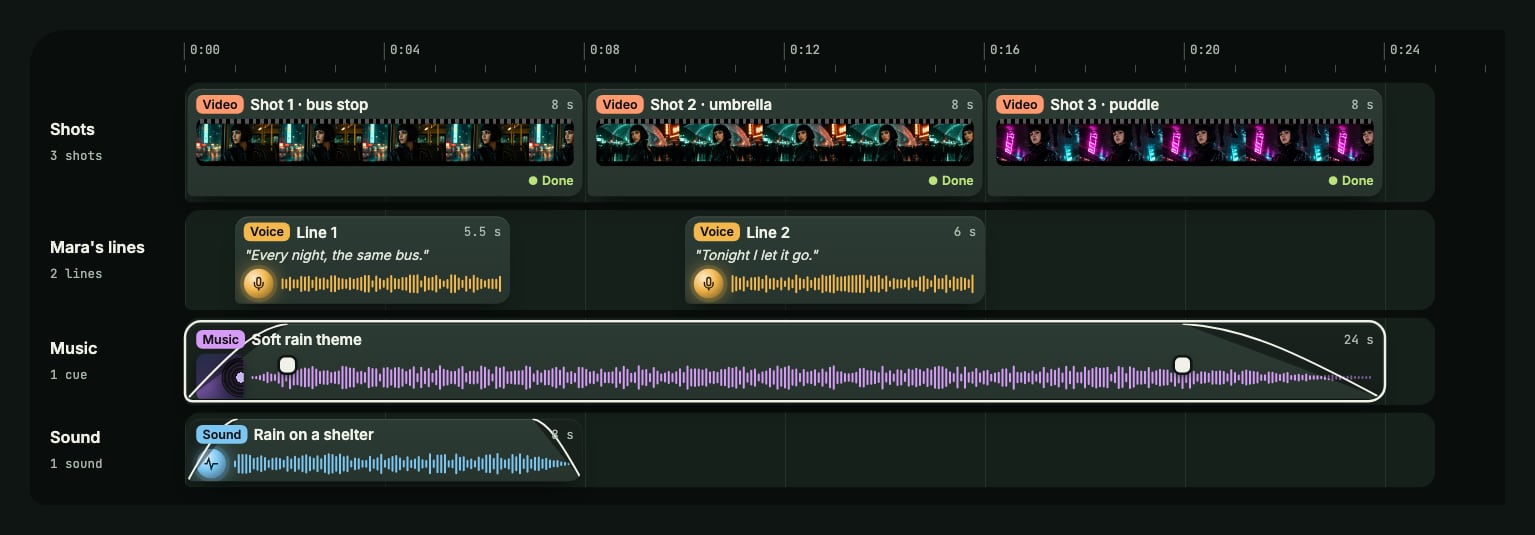
Section titled “Fades, crossfades and ducking”Fades. Every voice, music and sound block has a fade in and a fade out, 0 to 10 s each. Select the block and drag the handle at its top left or top right corner inward; a yellow readout shows the length, and the curve is drawn over the waveform. The block dialog has Fade in and Fade out under Level. Or right-click the block and choose Fade in… or Fade out… to type the seconds; Remove fades clears both.
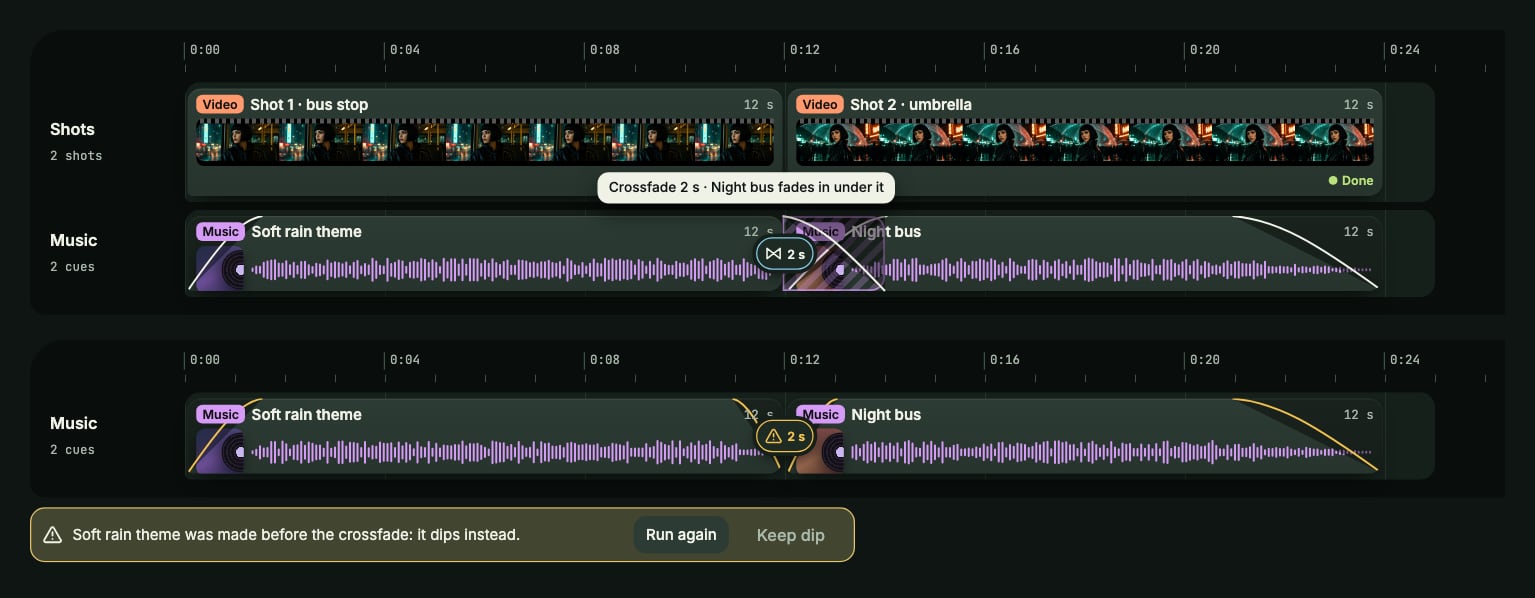
Crossfades. Right-click a music or sound block and choose Crossfade into next to blend it into the block after it on its lane (2 s by default). The join shows a sky badge with its length; click it to pick 1 s, 2 s, 4 s, type a length up to 10 s, or Remove it. A cue with a crossfade after it runs that much longer, so its sound plays on under the next block’s start. A take made before the crossfade has no extra sound, so it dips instead (each side fades over half the length): the badge turns amber and a warning offers Run again or Keep dip. The warning list counts it too.
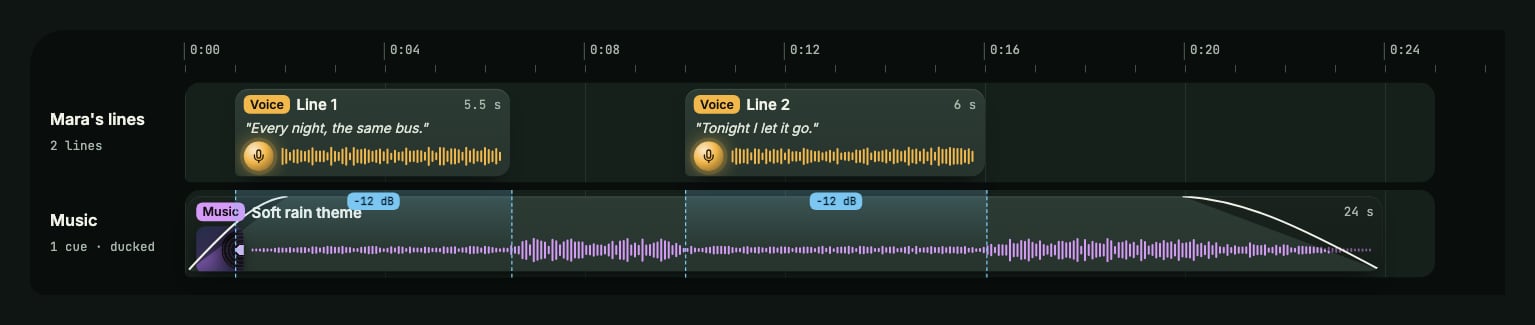
Duck music. Music dips under voice, by 12 dB by default, and eases back over 0.3 s. It is on for a new board: the switch and the amount (−6, −9, −12 or −18 dB, or typed) are in the board’s panel when nothing is selected. The ducked stretches are shaded on the music lane. Sound effects are not ducked.
Play, Export and Send to Timeline use all of it. Send carries each block’s fades onto its clip, a crossfade onto the outgoing clip, and Duck music onto the new sequence.
Move and edit
Section titled “Move and edit”- Drag a block to move it. With Snap on, it snaps to the playhead and to other blocks.
- Drag the playhead by its line anywhere down the lanes, not only on the ruler.
- Insert moves the blocks after it along; Overwrite covers them. Hold Alt while dragging for Overwrite.
- Select several blocks to move, run or delete them together.
- Split at playhead (S), Duplicate (⌘D) and Delete (⌫) are in a block’s right-click menu.
- Undo (⌘Z) and Redo (⇧⌘Z) step through your edits.
Everything on the board has a right-click menu: blocks of each kind, lane headers, the empty lane, assets and their views, joins, ties, effects, snapshots and sends.
Run and GPU time
Section titled “Run and GPU time”Run one block with Generate or Run, everything up to a block with Run up to here, a lane with Run lane, or every block that needs it with Run board. Each shows the GPU time first.
The estimate comes from your own recent runs of that model and variant, or from the model’s own figures when you have none. With neither, it says the time is unknown.
Ask before runs over N GPU min in the board’s panel sets your limit (10 minutes by default; a limit you set yourself is kept). A run above it, or with no estimate, asks first with the time, in a small popover on the button you pressed.
Snapshots and history
Section titled “Snapshots and history”- Save snapshot keeps a named point to come back to. Restore makes a new revision, so nothing is lost.
- History lists the last 30 changes, by you, by the Assistant or by helmstudio, each with a summary. Pick one and choose Restore rev N.
Export
Section titled “Export”Export makes an MP4 of the board in one step. It sends the board to a new sequence, waits for its joins to bake, then exports that sequence with the Timeline’s own defaults. The button’s line follows the steps (sending, baking, frame n of the total), and a note at the end has Open in Timeline, or says what went wrong.
Send to Timeline
Section titled “Send to Timeline”The Send to Timeline icon, beside Export, makes a new sequence to keep working on, named like The Last Tide · send 3. It never changes an existing sequence, and the board stays as it is.
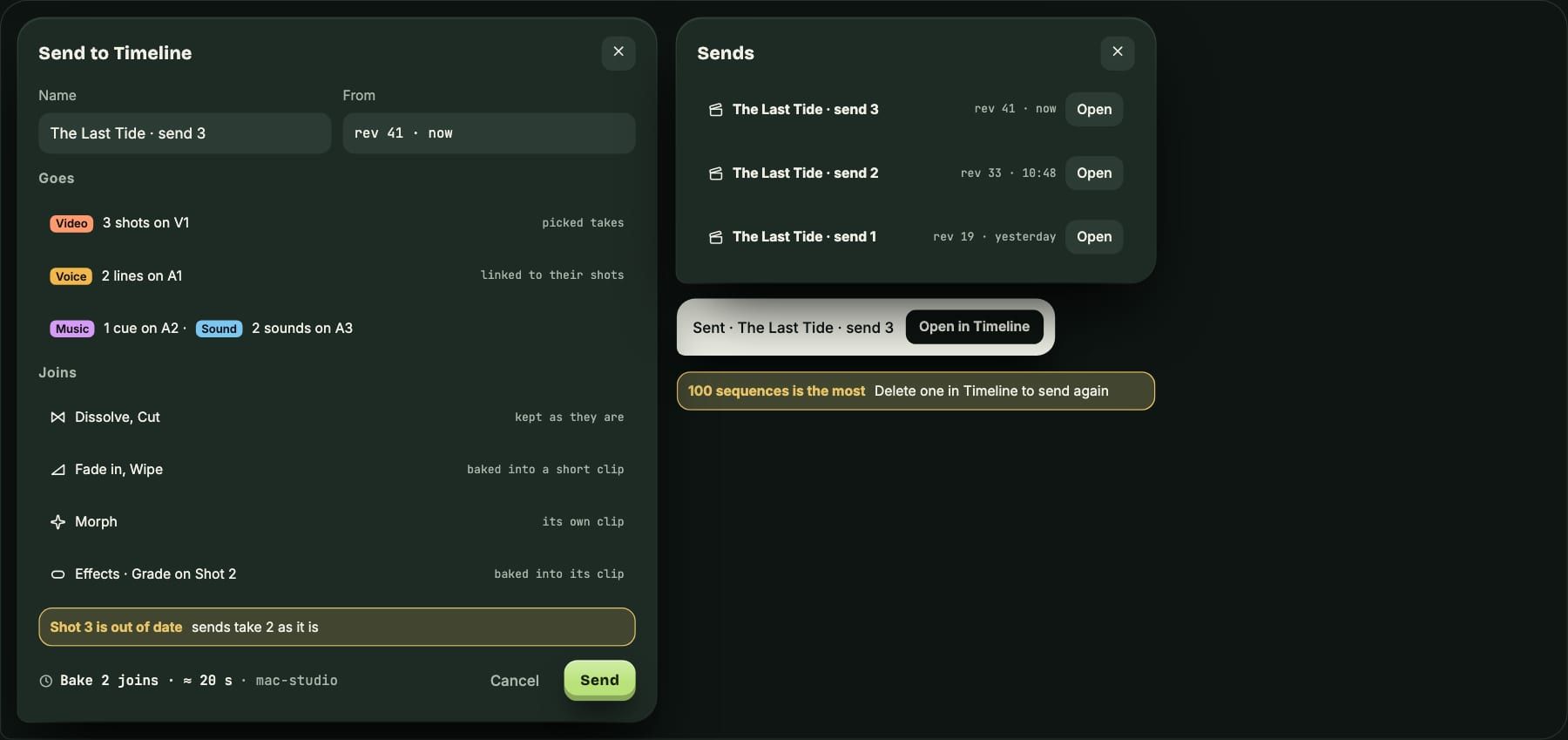
What goes:
- The first Shots lane goes on the picture track, each shot with its pinned take (or its latest).
- Voice, music and sound go on audio tracks at their level, linked to their shots when they are tied.
- Cut and Dissolve go as they are when they can. Fade, Wipe and effects are baked into short clips; a Morph is its own clip. The board’s timing stays the same.
- A block with no take leaves a gap, with a warning. A fade on a voice, music or sound lane is not sent, with a warning: the Timeline has no sound fades.
The dialog shows what goes where and how long baking takes. Press Send; a note shows while it bakes, with Open in Timeline when it is done.
Sends lists every send with the board revision it came from. Its menu has Open in Timeline, Restore board to rev N and Remove from list (the sequence stays). You can keep up to 100 sequences; delete one on the Timeline to send again.
With the Assistant
Section titled “With the Assistant”The Assistant plans and builds a board with you: a plan you approve first, then the assets and their views, the characters’ voices, the frames, the shots, the sound, a review, and the send. It checks the music and sound by their measured facts and can listen to a take. Its changes are drawn on the board for you to Apply or Discard. See The Assistant on a Magic board.