

Media tools
Media tools is a built-in plugin of kind Assistant tools. It adds Edit to the Gallery and gives the Assistant the same edits, plus a way to look at the frames of a video.
Every edit makes a new take next to the original, with Undo. The original never changes. Nothing leaves your machine and no GPU is used.
Turn it on
Section titled “Turn it on”It is off until an admin turns it on.
- Open Hub in the rail, on the Assistant tab.
- Under Tools, turn on Media tools.
It runs inside helmstudio itself, the same in the Mac app and on a Linux server. There is nothing to install. Once it shows Running, Edit appears in the Gallery.
Edit a take
Section titled “Edit a take”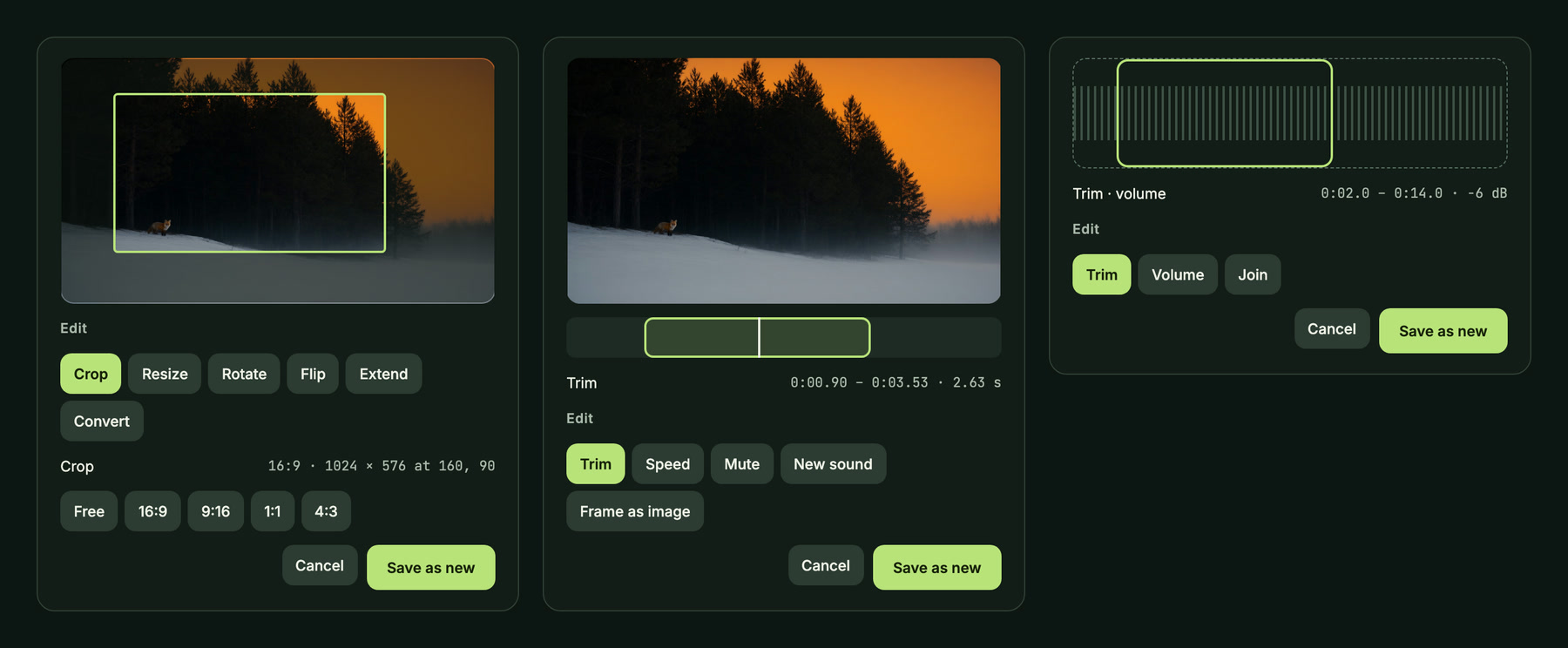
- Open the Gallery and click a take.
- Press Edit in the side panel. The tabs depend on the kind of take.
- Make your changes. A line under the picture shows what you will get, for example 16:9 · 1024 × 576 at 160, 90.
- Press Save as new, or Cancel to leave without saving.
Edit shows only while Media tools is on and running.
| Tab | What it does |
|---|---|
| Crop | Drag a box on the picture. Pick a shape: Free, 16:9, 9:16, 1:1 or 4:3. |
| Resize | Set Width or Height, up to 8192 px. The other side keeps the aspect. |
| Rotate | 90°, 180° or 270°, clockwise. |
| Flip | Across (left to right) or Down (top to bottom). |
| Extend | Adds Pixels per side (up to 4096) around the picture, in a colour you pick or Transparent. |
| Convert | Saves as PNG, JPEG or WebP. Left alone, it keeps the original’s type. |
You can use several tabs before you save. They are applied in the order of the tabs: crop, resize, rotate, flip, extend, convert.
The trim bar under the player shows the video’s frames. Drag either end of the box to trim; click elsewhere on it to move the playhead.
| Tab | What it does |
|---|---|
| Trim | Keeps the part inside the box. The line shows its start, end and length. |
| Speed | 0.25×, 0.5×, 1×, 1.5×, 2× or 4×. The line shows the new length. |
| Mute | Sound off removes the sound. |
| New sound | Pick an audio take… to replace the sound. It is cut to the length of the picture. |
| Frame as image | Saves the frame under the playhead as a new image take. |
Trim, speed and sound can go into one save. The new video is an MP4 (H.264 and AAC).
A Timeline export is a video take like any other, so you can edit it too.
The trim bar shows the sound’s waveform: drag either end of the box to trim.
| Tab | What it does |
|---|---|
| Trim | Keeps the part inside the box. |
| Volume | From −30 dB to +20 dB. |
| Join | Plays 2 to 8 sounds one after another. Add audio takes… picks more; drag to order them, and × leaves one out. |
The new sound is an m4a (AAC).
Save as new and Undo
Section titled “Save as new and Undo”After Save as new the Gallery shows Saving…, then selects the new take next to the original with a toast: Saved as a new take · Shot 3 · trimmed. Press Undo to delete the new take. The original stays as it was either way.
If the edit fails, the panel says Couldn’t save and why, for example “it took too long; try a shorter part”.
What the Assistant can do with it
Section titled “What the Assistant can do with it”While Media tools is on, ask the Assistant in plain words:
- “Crop this to 9:16”, “Make it 1024 wide”, “Turn it into a JPEG”.
- “Trim the first second off”, “Play it at half speed”, “Put the new voice line under shot 3”.
- “Make the music 6 dB quieter”, “Join these three lines in order”.
- “Save the frame at 2 seconds as an image”.
It runs these at once, without a Yes card, because they only add takes. Each shows as a line in the chat, such as Cropped, resized to 1024 × 576 · Fox at the window, with the new take and Undo.
Look at a video
Section titled “Look at a video”The Assistant can also pull frames from a video to look at: at times you name, a number of frames evenly spaced, or at each scene change. It takes up to 8 at a time, with their timecodes. This makes no take; the frames are only for it to look at.
Ask “Does the fox stay in frame the whole clip?” or “Where are the cuts in my export?”. A model that sees images looks at the frames themselves; a text-only model gets only the timecodes. It works on a Timeline export too.
Limits
Section titled “Limits”- A video or sound of at most 10 minutes.
- A video file of at most 2 GB; an image or sound file of at most 50 MB; an image of at most 50 megapixels.
- Each edit has about 25 seconds of work. For a long video, trim a shorter part.