

Plugins
A plugin adds a feature to helmstudio without changing the app: a tool the Assistant can use,
a craft it can read, or a model provider. Each plugin is a folder with a small manifest, plugin.json, that says
what it is and what it may do.
Plugins are new in 0.1.0-alpha.2.
The kinds
Section titled “The kinds”| Kind | What it adds | Example |
|---|---|---|
| Assistant tools | Tools the Assistant can call, served by a small program of its own. | Web search, Media tools |
| Skill | Text that teaches the Assistant a craft. It never runs anything. | Cinematic filmmaker, Animator |
| Model provider | A model endpoint you add as a provider in one click. |
Built in: Web search lets the Assistant search the web, and Media tools adds Edit to the Gallery (crop, trim, resize and more) and the same edits for the Assistant.
Where plugins come from
Section titled “Where plugins come from”- Built in: they ship with helmstudio.
- Yours: drop a folder or a
.zipinto~/.helm/plugins/. It is found at once, with no app update. If yours has the same name as a built-in one, yours wins (see Skills for the exceptions).
The studio reads the plugins when it starts, when you press Rescan, and when ~/.helm/plugins/ changes. A new
plugin is always added Off.
Hub › Plugins
Section titled “Hub › Plugins”Plugins live in Hub, on the Plugins tab. Only admins see Hub.
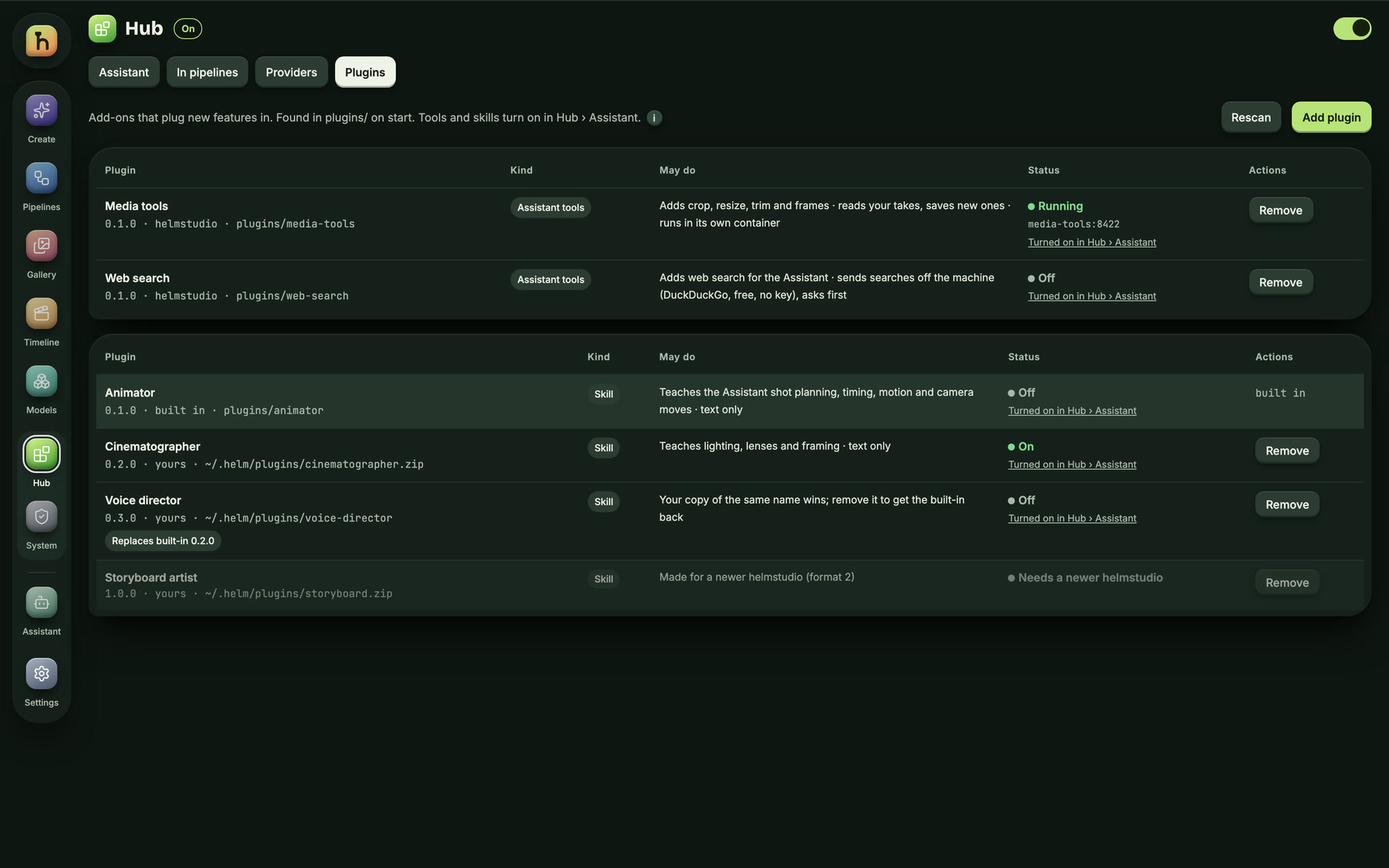
The list shows each plugin with its Kind, what it May do and its Status. Click a row to open its side panel: its version, source and author, what it may do, any disclaimer, and, by kind, its tools, models, files or recipes.
| Control | What it does |
|---|---|
| Rescan | Reads the plugin folders again. It says what is new, for example “1 new plugin: Web search. It stays Off.” |
| Add plugin | Shows where plugins come from: Built in or Yours (~/.helm/plugins/). |
| Remove | Drops the plugin from the list, with any provider made from it. The folder stays, so a Rescan finds it again, off. |
This tab has no on/off switch for Assistant tools and skills. Their rows say Turned on in Hub › Assistant.
Turn a plugin on
Section titled “Turn a plugin on”Assistant tools and skills:
- Open Hub in the rail, on the Assistant tab.
- Turn on the tool under Tools, or the skill under Skills.
To read what a plugin May do first, click it in Hub › Plugins. A model provider plugin keeps its own switch, in its side panel on the Plugins tab.
A plugin that is off is never called. Turning it off takes effect at once: the Assistant’s next message no longer has its tools.
An Assistant tool that sends anything off the machine, uses the GPU or cannot be undone always asks first. The Assistant shows a card with the tool and what it will send, and you answer Yes or Not now.
Status
Section titled “Status”| Status | Means |
|---|---|
| Off | Turned off. Never called. |
| On | A skill that is on. |
| Running | On, and its program answers. |
| Starting… | On, and starting on the Mac. |
| Couldn’t start | It stopped while starting. The side panel says why, shows its log and has Try again. It also tries again by itself within a minute. |
| Not running | On, but its program does not answer. For one that starts itself, no runner on its Mac is up. |
| Needs a newer helmstudio | Written for a newer version. It can’t be turned on. |
| Can’t be read | Its folder or .zip is broken. Nothing from it is used. |
Plugins that start themselves
Section titled “Plugins that start themselves”Some plugins run as a small program on the Mac and start themselves when turned on (Web search); others run inside helmstudio’s own services and only need turning on (Media tools).
When a plugin’s manifest says how to start its program, helmstudio does it for you:
- Turn the plugin on and it starts on the Mac. Its side panel says Starts: On its own, on the Mac.
- If it stops, it starts again after a short wait (1 second, doubling up to 1 minute).
- Turn it off and it stops.
- A plugin that is on starts again every time the runners start, so it stays on when you next open the Mac app.
Its log is ~/.helm/logs/<name>.log. The runners started by the Mac app, or by make runners on a Mac, do this. Run
only one of them on a Mac at a time.
A plugin without a start command has to be started by hand. While it is Not running, its side panel shows the command to run, with Copy and Try again.
Model provider plugins
Section titled “Model provider plugins”When a model provider plugin is on and running, its side panel offers Add as provider. Paste the key (the panel says where to find it) and press Add; helmstudio checks it and adds the provider. Its row then says Added, with Open in Providers and Open Assistant in the side panel. Pick it for the Assistant in Hub › Assistant.
Your Claude subscription
Section titled “Your Claude subscription”A model provider plugin, in the Mac app from 0.1.0-alpha.3. It answers with your own Claude plan: it runs Claude Code on this Mac, which you install and sign in to yourself.
- Needs: Claude Code, installed and signed in by you.
- Off until you use it. Then it starts itself on the Mac. If Claude Code is missing or signed out, it says Install Claude Code and sign in, then Try again.
- No key to paste: it uses your own Claude login, and the Mac hands helmstudio what it needs.
- Personal: only you see and use its provider, never other accounts. It is not offered as the pipelines model.
- helmstudio never reads or stores your Claude credentials. It runs your own, unmodified
claude.
To use it, open Hub › Assistant, pick Your Claude subscription under Who answers, pick a model and save. That turns the plugin on and adds its provider. You can also turn it on in Hub › Plugins and press Add as provider in its side panel.
Make your own
Section titled “Make your own”See Write a plugin.