

Gallery
The Gallery holds every take you have made or uploaded. Each take keeps the settings and inputs that made it, so you can repeat it or build on it. Every image, video or sound input in helmstudio is picked from here.
Find takes
Section titled “Find takes”- Search prompts, elements and models with the search box.
- Filter with the chips: All, Images, Video, Audio, Starred, From Create, From Pipelines, From Timeline, Uploads, and This project only (the session you last opened on Create). Chips combine.
- Sort: takes show newest first. Ask the Assistant to sort by Oldest, Starred first or Name; a Sort chip then shows the order, and clicking it goes back to newest first.
A batch’s Open in gallery shows only that batch’s takes, with a chip you can clear.
The grid draws only the rows near the screen, so a gallery of thousands of takes stays fast and keeps its scroll position and selection. The Gallery picker on Create works the same way.
Upload
Section titled “Upload”Drop images or sounds (wav, mp3 or m4a) on the grid, or upload them from the Gallery picker wherever an input asks for one. An upload becomes a take like any other.
The side panel
Section titled “The side panel”Click a take to see it in the side panel:
- Made with: the workflow, the host it ran on, its looks, LoRAs, size, seed, length and Render time (for example ⏱ 1:14).
- Lineage: Made from shows the takes it was built from, and Used in the takes built from it. Click one to open it.
- Open it Full screen (F), or double-click the take in the grid: an image opens full size, a video or sound plays. A single click only selects it.
Right-click a take for the same actions. Shift + right-click gives the browser’s menu.
Take actions
Section titled “Take actions”| Action | What it does |
|---|---|
| Use in… | Opens a workflow on Create with this take as its input: an image to edit or animate, a video to extend or retake, a sound to drive a video. |
| Last frame in… / First frame in… | For a video: makes an image of that frame and offers it to a workflow. |
| Add to timeline | Adds the take to the sequence you opened last, or to a new one. A sound goes on an audio track. |
| Reuse settings | Opens Create with this take’s settings and shows the take on the stage. |
| Star / Unstar | Marks a take you want to find again. |
| Rename | Gives the take a title. |
| Save as element | Makes an element from an image take. See Elements and Looks. |
| Save as look | Makes a look from the take’s prompt, LoRAs or the image itself. |
| Save as pipeline | Turns the take’s lineage into a pipeline, one step per workflow. See Pipelines. |
| Edit | Crops, trims, resizes and more, and saves the result as a new take. Shows while Media tools is on. See Edit a take. |
| Export file | Downloads the file. |
| Delete | Removes the take from the Gallery and Create. This cannot be undone. |
Edit a take
Section titled “Edit a take”With the Media tools plugin on, a selected take has Edit:
- Image: Crop (Free, 16:9, 9:16, 1:1, 4:3), Resize, Rotate, Flip, Extend and Convert.
- Video: Trim on the trim bar, Speed (0.25× to 4×), Mute, New sound and Frame as image.
- Audio: Trim on the waveform, Volume (−30 to +20 dB) and Join (2 to 8 sounds in order).
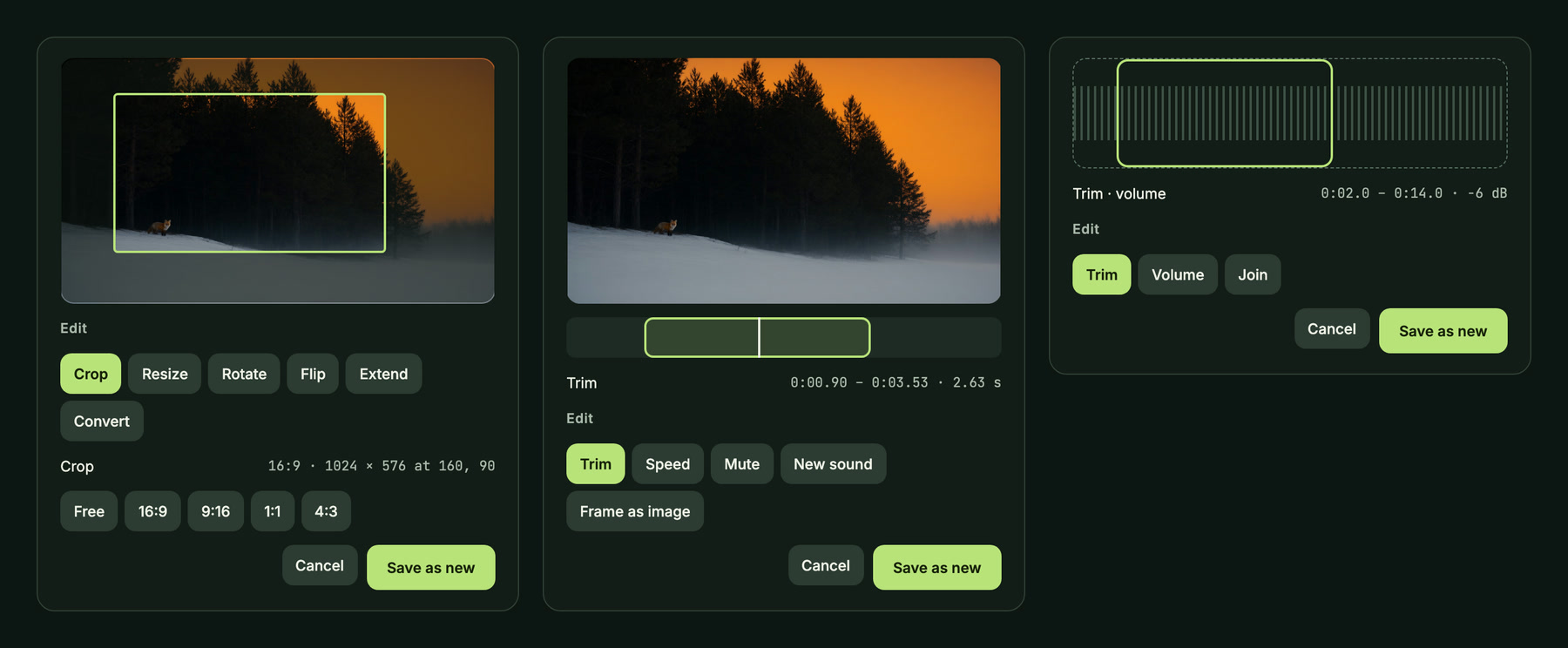
Save as new puts the result next to the original as a new take, with Undo in the toast. The original never changes. See Media tools for every control.
Work on several takes
Section titled “Work on several takes”Choose Select several, then pick takes. You can Star them, Delete them, add them to the timeline in the order you picked, or make an element from 1 to 4 images. Press Done to stop selecting.