

Assistant
The Assistant is a chat that works the app for you. Say what you want in plain words; it does it on screen, where you can see each step.
Open it
Section titled “Open it”Press Assistant in the rail, or ⌘J (Ctrl+J). Every user has it. It opens over the right edge of any screen; on a phone it is a sheet at the bottom. For an admin, its header also has a Hub button.
The Sees chips under its title say what it is reading now: the screen, the session, the workflow, Run on and your elements.
Before it is set up
Section titled “Before it is set up”Until an admin sets it up, the drawer shows a welcome instead of a chat: what the Assistant does and what it helps with.
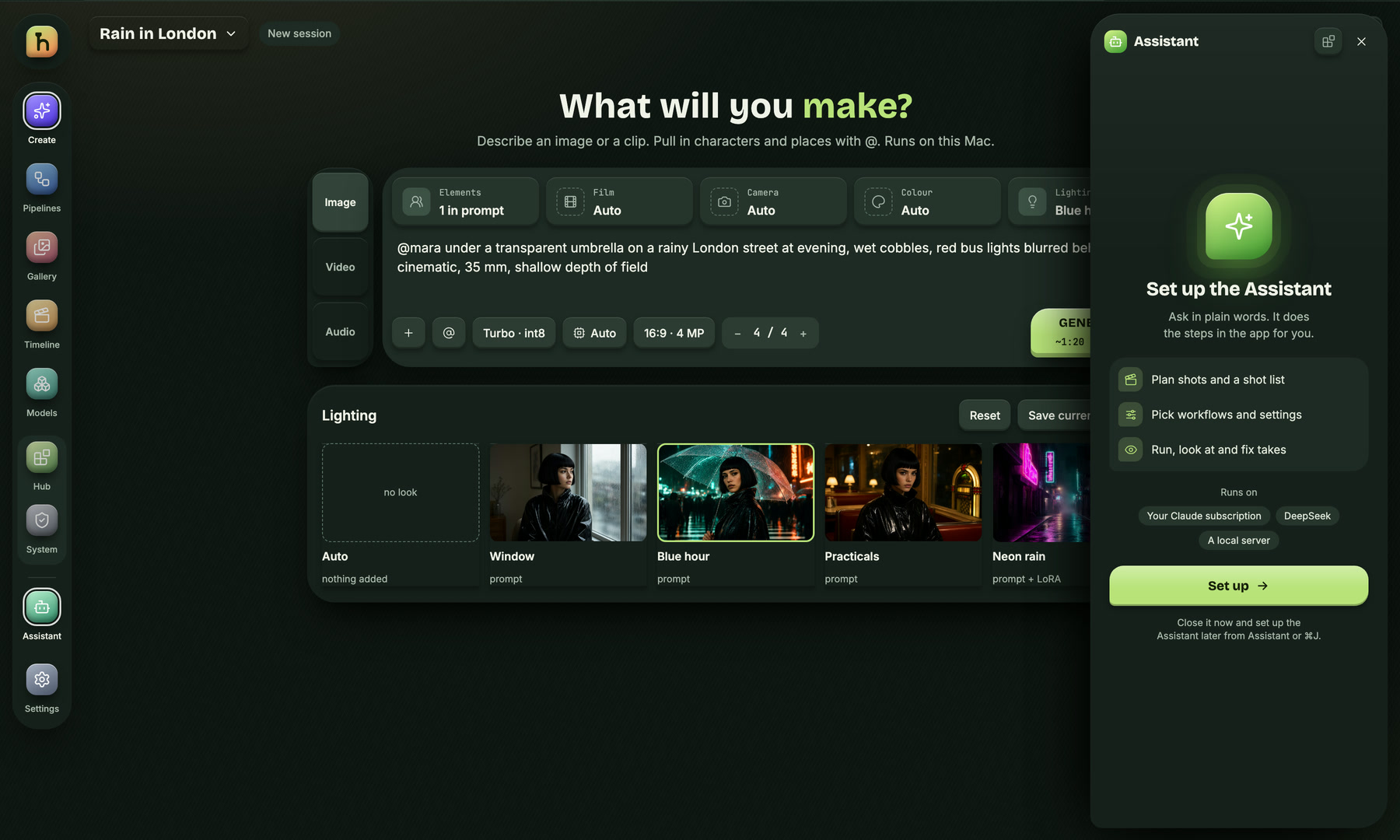
| You are | Not set up | Off |
|---|---|---|
| An admin | Set up the Assistant, with the providers it runs on and Set up, which opens Hub › Assistant. | The Assistant is off, with Turn on, which turns it on for everyone. |
| Anyone else | The Assistant isn’t set up yet · Ask your admin to set it up. No button. | Your admin turned it off. No button. |
The first time an admin signs in to a helmstudio that was never set up, the drawer opens by itself, once. Close it and set it up later from Assistant or ⌘J.
| Control | What it does |
|---|---|
| Full screen (⇧⌘J, Ctrl+Shift+J) | The chat fills the window. Press it again, or Esc, to go back to the drawer. |
| Minimize | Shrinks it to a small bar at the bottom right, so you can work on the screen. The bar shows Working with Stop, Waiting when a step needs you, or a dot for a new answer. Click it to open the chat as you left it. |
| Esc or ⌘J | Closes it. The work keeps going. |
The bar moves up rather than cover a Generate button.
Move it
Section titled “Move it”Drag the drawer’s header (or its bar) to float it anywhere on the screen. Dock, or a double-click on the header, puts it back at the right edge. helmstudio remembers the place for you in this browser. Close stays on screen while a chip shows. When a page opens a side form (for example Edit or Add), a docked drawer minimizes to make room.
What it can do
Section titled “What it can do”It works every screen:
- Anywhere: take you to any screen with the right thing open, explain what is on screen, and answer “how do I…”.
- Create: write prompts with
@elements, pick looks and voices, switch Image, Video or Audio, pick the workflow, variant, Run on and preset, set size, steps, seeds and LoRAs, and prepare Generate. It can stop a run and explain a failed one. When it switches to a voice workflow, it writes the spoken line (or a dialogue script) itself. - Graph: build a workflow from a description and fix its problems.
- Pipelines: turn a brief into a pipeline, test a judge, and start, pause, resume, retry or stop a batch.
- Timeline: place, trim, split and order clips, make shots and voice lines, re-render and export.
- Gallery: find takes, filter, sort, star, rename and delete them.
- Models: explain variants, add-ons, licences and machines. For an admin, it prepares a download.
It can also read how long each take took to render, to tell you what a change will cost in time.
It chains steps. “Make an image, then animate it” prepares the image, waits for your OK and the run, then prepares the video with the new take.
Each step shows as a line in the chat, such as “Opened Timeline”, with Undo where the screen can undo it.
Try: “Take me to my newest batch”, “What is on this screen?” or “Why did my last run fail?”
Reading its answers
Section titled “Reading its answers”- Answers use light formatting: lists, bold, italic,
codeand code blocks. A code block has a Copy button; so does every answer. - Takes, elements, voices and workflows show as chips with a picture and a title, never as raw ids. Click one to open it. A chip for something deleted since says so.
- A take on a line of its own shows as the take itself: an image, a video with a small player (sound off until you turn it on), or audio with play and a waveform. Under it, Open shows it in the Gallery viewer and Use in… offers the workflows it fits, the Timeline at the playhead, and Save as element for an image.
- On the Timeline, a timecode in an answer is a chip that moves the playhead there.
- The latest answer always shows in full. An older long one is cut to three lines with a chevron: Show all opens it, Show less closes it.
- When you send a new message, the steps of the previous answer fold into one summary line, such as “14 steps · 2 takes · 1 memory”. Tap it to open them again.
- When an answer offers choices, they show as cards, with the recommended one marked Best next. Click a card, or press its number (1–4), to send it as your reply. Only the newest answer’s cards work.
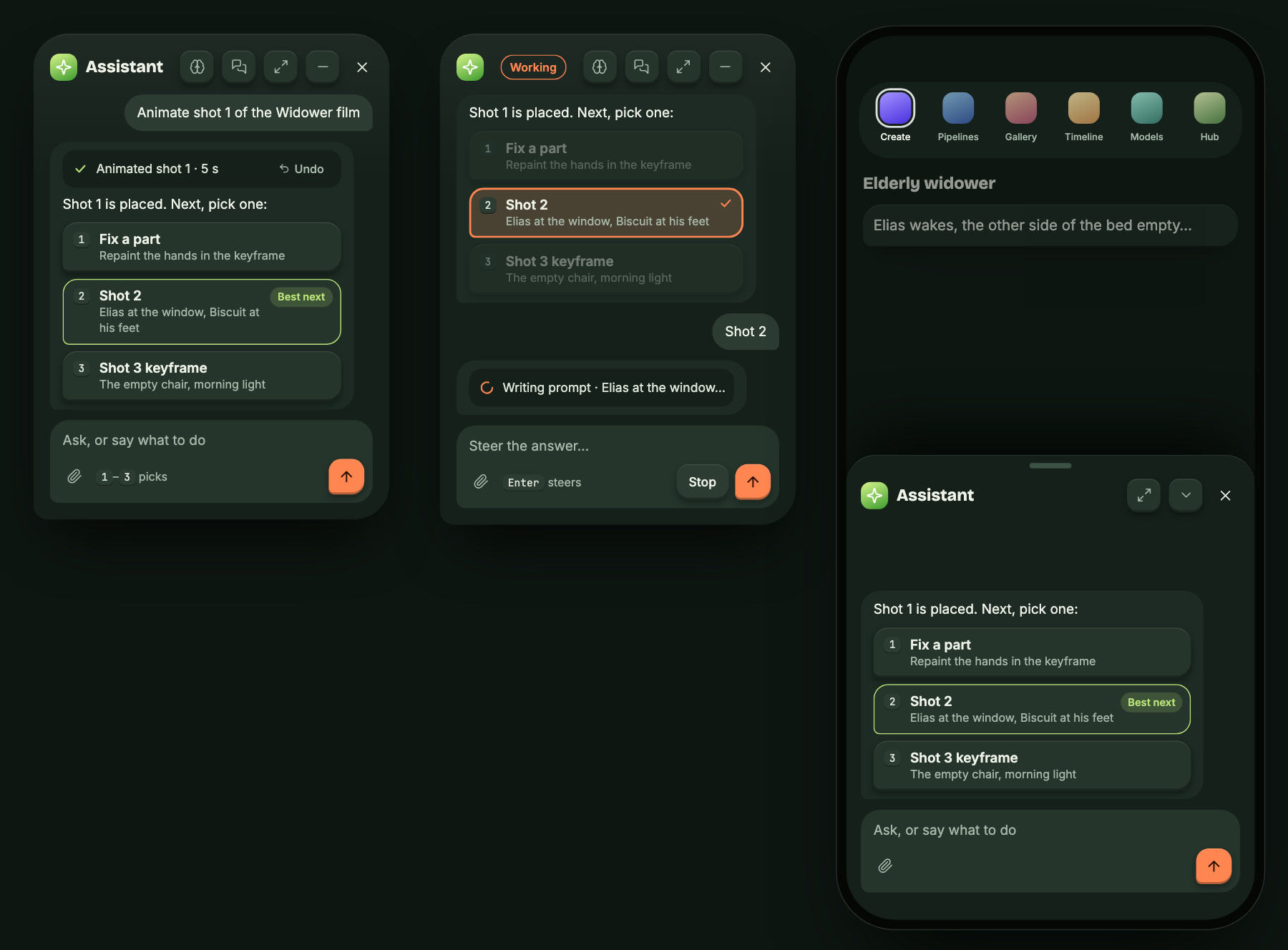
Hand it takes and images
Section titled “Hand it takes and images”- @: type
@in the message box to pick from a list: Skills first, then Elements, Takes (newest first) and Uploads. Keep typing to search. A take goes in as a chip. - Attach: press the paperclip, paste an image, or drop one on the chat. It uploads to your Uploads first, then goes with your message, up to 8 at a time.
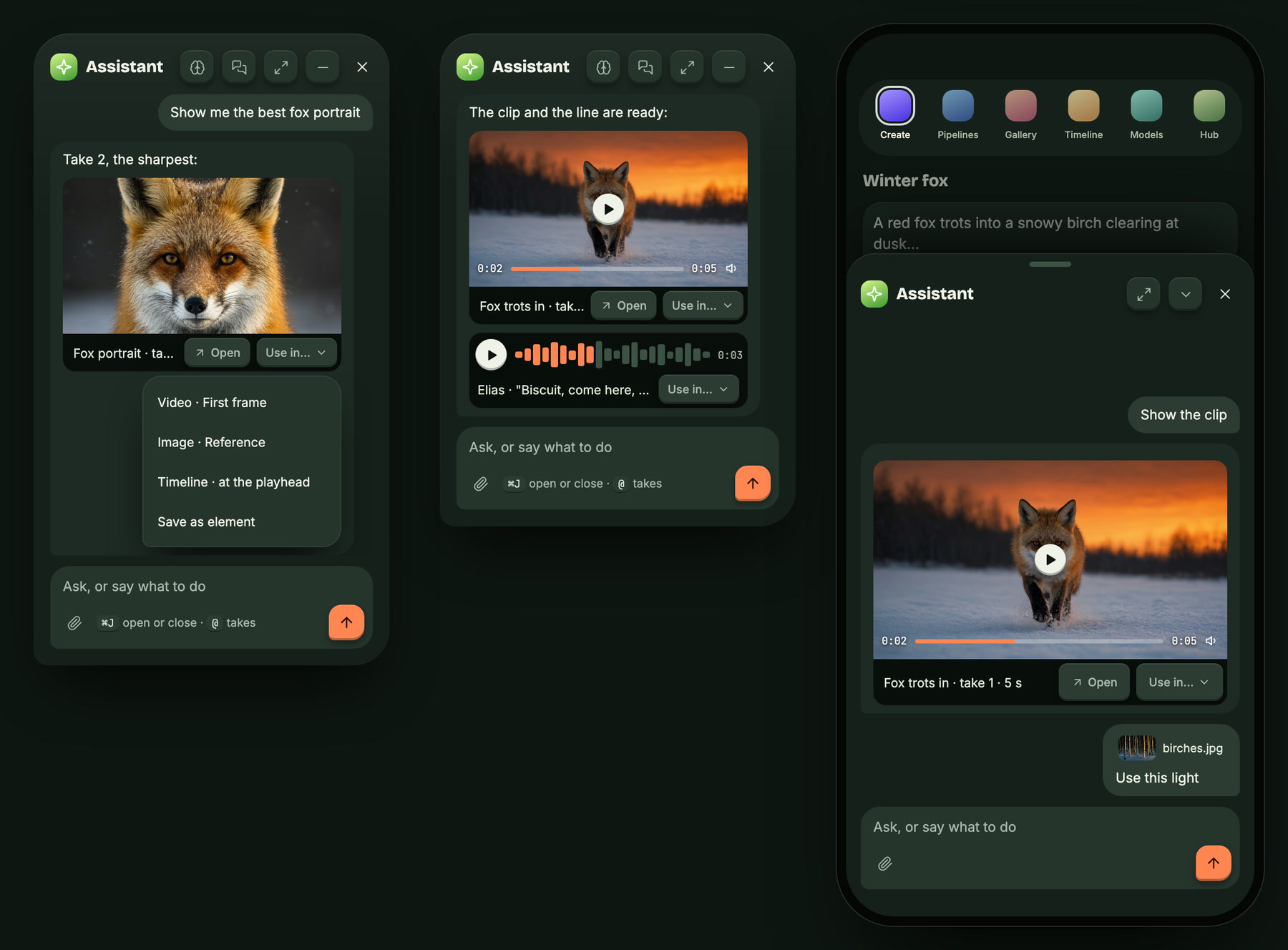
When the Assistant’s model can see images, it looks at them itself: the takes you attach or pick with @, and the
ones it finds while it works. A line “Looked at …” says which. Pictures go to the model downscaled (about 1024 px on
the long side; a video as its poster frame). It also looks at what it just made, to check it against your ask.
When the model is text-only, the chat says once “This model can’t see images; it will use Look at.” It then uses Look at instead.
It asks before costly actions
Section titled “It asks before costly actions”Anything that uses the GPU, deletes something, or sends data out of the machine stops at a card. The card says what will happen, for example the model, machine, size and estimated time for a run, or “This can’t be undone.” for a delete. The card’s button (such as Generate) is your click and runs the screen’s own button. Not now cancels.
Auto mode lets safe steps run without the card.
Some things always stay yours. The Assistant points at them but never does them:
- Saving files to or from your disk.
- Signing in or out, your password and your theme.
- Admin changes in Hub and System: users, API keys, model providers, host pins and settings.
- The licence tick when downloading a model, and the voice rights tick when cloning a voice.
- Messages to a pipeline’s director chat.
Auto mode
Section titled “Auto mode”Auto mode lets the Assistant run safe steps without stopping at a card. It is a switch per chat: press Auto in the message box, next to the paperclip. It starts off in every new chat.
| With Auto on | |
|---|---|
| Runs by itself | Generations on your own machines and Hear it previews, within the hourly caps. Saves that make a new item: Save as look, a new element, Design a voice (it plays Hear it once, then Save as voice). Star, rename and add to timeline, as always. |
| Still asks | Deletes and overwrites (editing an existing item). Anything sent off the machine: batches, judge tests, web search, a remote model. Cloning a voice. Exports, downloads, stops and picks. A run bigger than a whole cap, a run with no time estimate yet (a workflow never run before), and any run past this hour’s cap. |
Each step it runs by itself shows as a line starting Auto · with Undo. Undo on a generation stops its runs and deletes their takes; on a saved item it deletes the item. Stop ends the answer as usual.
When a step still asks, its card shows with a line saying why, such as “Auto stops here: deleting needs you” or “Auto paused · 8 of 8 takes this hour”. While it works, a chip under the chat counts the takes it has used this hour.
The caps are per user, per hour. The admin sets them in Hub › Assistant:
| Cap | Default |
|---|---|
| Auto takes, an hour | 8 |
| Auto GPU minutes, an hour | 30 |
Turning Auto off during an answer takes effect at its next step.
Look at takes
Section titled “Look at takes”Ask “Which of these four is sharpest?” or “Does the video match the prompt?”. With a model that sees images, it just looks. With a text-only model, it runs Look at: an “Ask” workflow’s model on one of your machines looks at up to 8 takes at a time (a video as a few keyframes). Look at needs a card, except on takes you attached or picked in that chat. See Ask.
Edit takes and look at video
Section titled “Edit takes and look at video”With the Media tools plugin on, it can crop, resize, rotate, flip, extend and convert images; trim videos, change their speed, mute them or give them a new sound; save a video frame as an image; and trim, level and join sounds. Ask “Crop this to 9:16” or “Trim the first second off”. Each edit makes a new take next to the original, with Undo, so it needs no Yes card.
It can also pull frames from a video to look at it: at times you name, evenly spaced, or at each scene change, up to 8 at a time with their timecodes. Ask “Where are the cuts in my export?”. This makes no take.
How it knows the models
Section titled “How it knows the models”Each model ships with a guide for the Assistant. For every model you have downloaded, it always has a short card: what the model is good and weak at, and when to pick it over another. So “make a fast draft” or “which model for a close likeness?” gets an answer that fits the models you have.
When it works with a model, it reads that model’s full guide first, and a line such as Read the LTX-2.5 guide says so. A guide also holds named settings, such as Quick look or Low memory for LTX-2.5, which it applies exactly.
Steer it, or stop it
Section titled “Steer it, or stop it”You do not have to wait for it to finish. While it works, the message box reads Steer the answer…: type and press Enter to steer the answer it is giving now. Your message waits at the bottom of the chat until the Assistant reads it at its next step.
Press Stop to stop the answer. It stops at once, even while the model is still thinking: the button reads Stopping… until it has.
While it works, a bubble at the bottom of the chat counts the seconds: Thinking… N s for a model that thinks, Working… N s for one that does not. The reply replaces it.
When something goes wrong
Section titled “When something goes wrong”- A failed step or a provider’s error shows in plain words. Details opens the raw text.
- If the model gives a broken answer twice, the chat says “The model gave a broken answer twice.” Retry sends your last message again.
- If you reach a per-user cap, the message box stays shut until the cap resets.
Chats and memory
Section titled “Chats and memory”- Chats lists your conversations. New chat starts another.
- The Assistant remembers useful things across chats, such as your preferences and what worked. It shows a “Remembered: …” line with Undo when it saves one. Memories are in plain words.
- Memory lists everything it remembers, in four tabs: Likes, Projects, Worked and Chats. Long items are cut with a chevron to show all. Each item’s ⋯ menu has Edit and Delete. Clear all removes everything.
If the chat is open in two browser tabs, only one acts; the other is Read-only until you press Continue here.
Your film’s shot list
Section titled “Your film’s shot list”When you plan a film with the Assistant, it saves the shot list in Memory › Projects: each shot’s number, what happens, its length and the line spoken, and the take you picked for it. Every chat on every screen reads it, so “make shot 3” works in a new chat too. Ask it to lay the shots on the Timeline and it places the picked takes in order, with a marker at each shot.
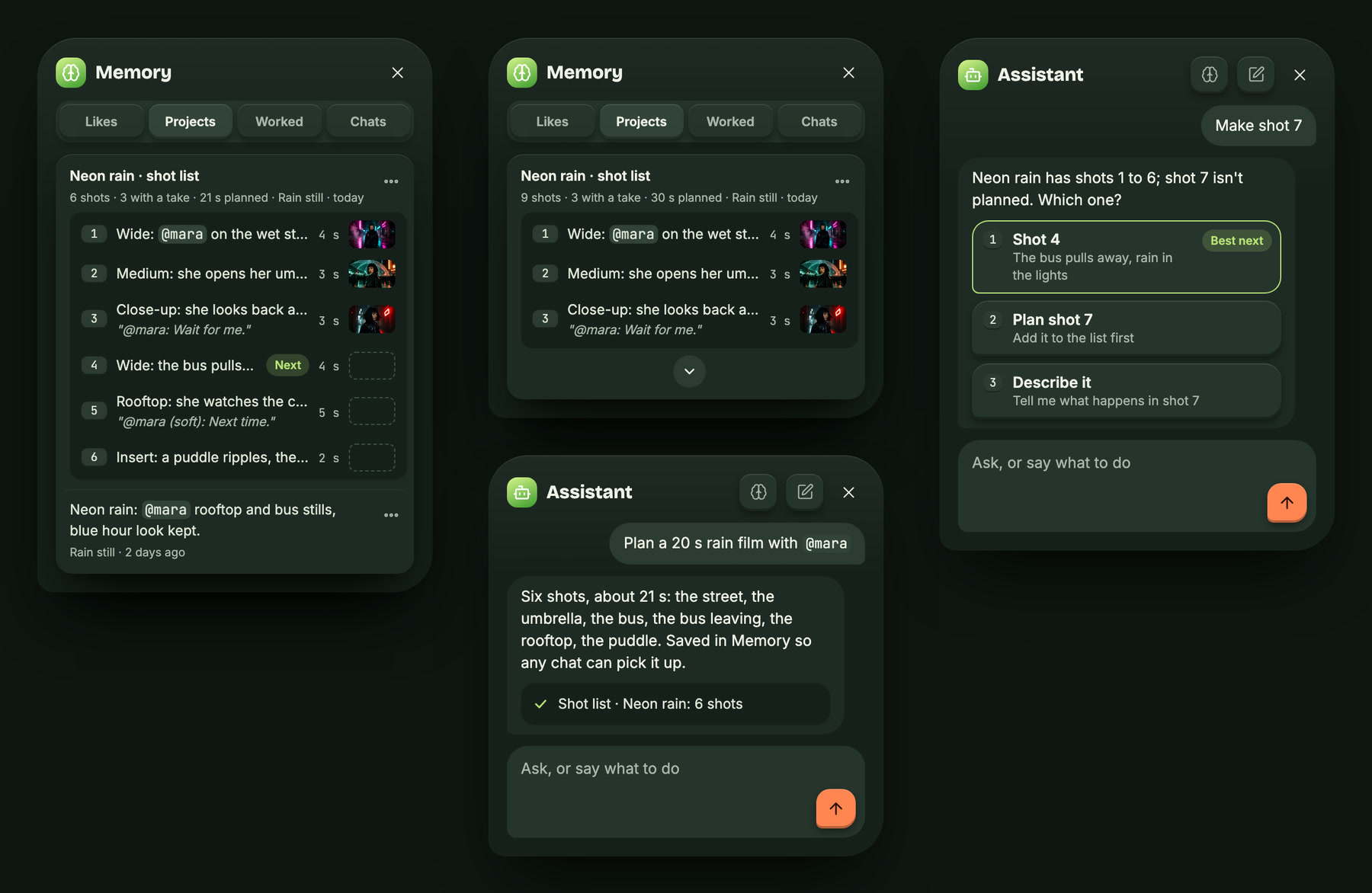
In Projects, a film’s list is its own row: the counts, then one line per shot with its take (tap to open it). A list of more than 6 shots shows the first 3; the chevron shows them all. Edit or delete it from the ⋯ menu.
If you ask for a shot that is not in the plan, or the next shot is unclear, it asks with choice cards instead of guessing.
Skills
Section titled “Skills”Skills teach the Assistant a craft, such as animation or cinematic film-making. The Assistant reads one when your ask
fits, and a line “Using skill: …” says so. To make it use one, type @ and pick it from Skills. An admin turns
skills and tools on in Hub › Assistant. See Skills.
How it keeps long chats
Section titled “How it keeps long chats”Each model has a chat window: how much of the chat it can read at once. When a chat fills about 70% of it, the oldest
half folds once into a short summary that keeps plans, decisions, names and @handles. The summary stays at the top
of the chat for the model until the next fold.
The start of each request stays the same from call to call, so providers that cache prompts (such as DeepSeek and OpenAI) read most of it from their cache: answers come faster and cost less. The admin sets each model’s chat window and sees the cache hit rate in Hub › Assistant.
Which model powers it
Section titled “Which model powers it”The Assistant runs on a text model your admin picks in Hub › Assistant, from the providers in Hub › Providers. It can be a local server on your own network or a remote provider.
With a remote provider, your messages and the screen summary go to that provider. If its model sees images, the downscaled pictures of the takes you hand it, and of those it looks at, go too. With a text-only model, your images never leave.
The admin also sets per-user caps, the Auto caps, and which tools and skills it may use.